

Overview
Every charger runs on a location, so a location is the first thing you set up. It holds the site’s address and map position, the tariff its chargers bill against, its publishing settings, opening hours, and the charge records that come off it. The Locations component covers what a location is and how it fits the rest of the platform; this page is how you configure one. You create and configure locations in Connect under Locations, or through the locations API. The shape is the same either way: set up the location’s details, choose how it’s published and when it’s open, then add chargers. You can also run several locations at one physical site, commonly to split AC and DC chargers, or to give two groups of chargers different pricing or access.Setting up the location
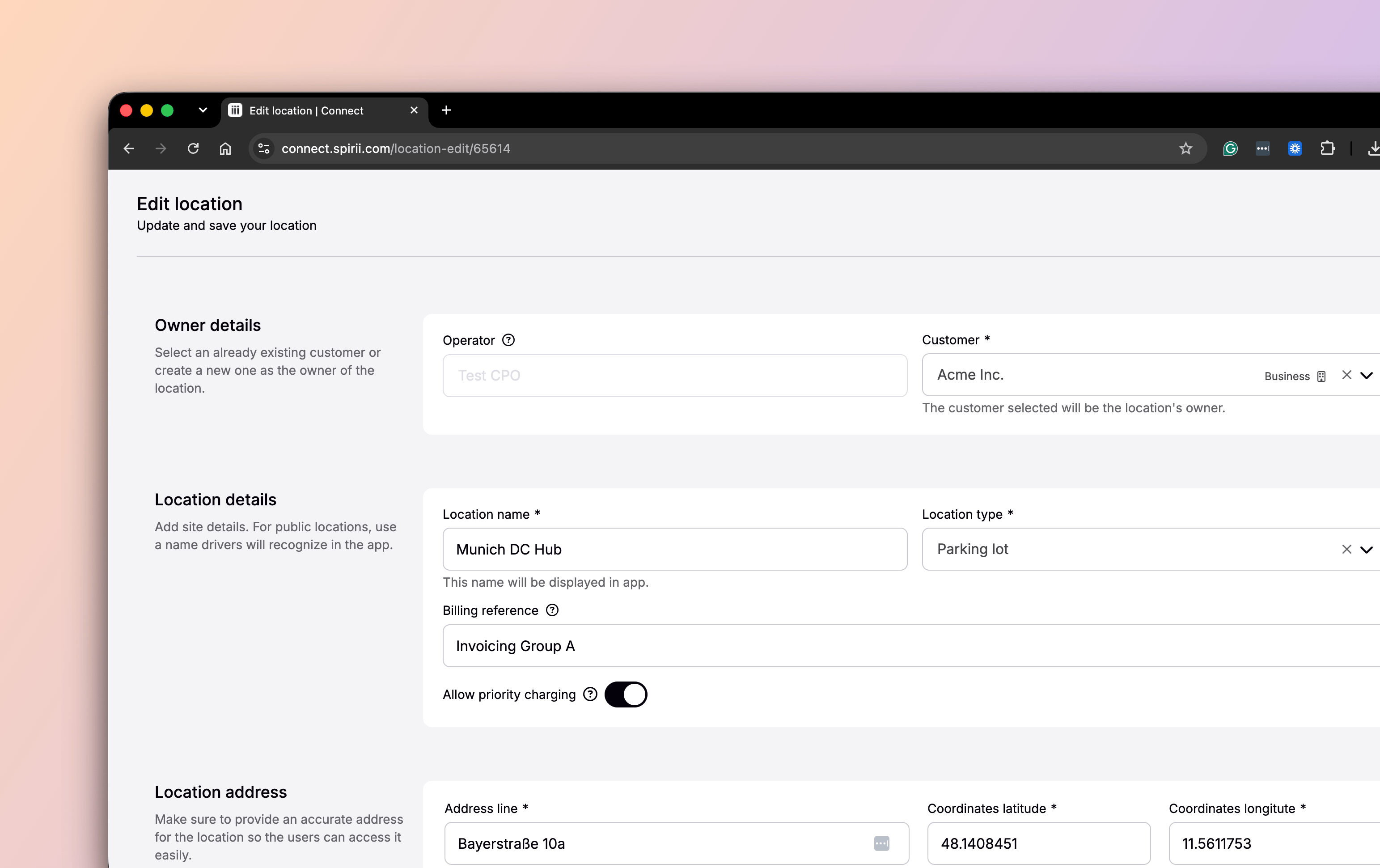
Creating a location runs through a single flow in Connect, with the same fields available over the API.1
Choose the customer
A location belongs to a customer, the account it’s operated under. Select an existing customer or create one in Connect as you go.
2
Name the location and set its type
Give the location a name drivers will recognise, since it’s what shows in charging apps, and pick a location type from the list. Parking Lot suits most depots, and Public Road is a common type for public charging hubs. The type is for internal categorisation and isn’t shown to drivers. Residential is a special case: it needs no tariff, and lets you choose whether the site owner sees the charger in their app.
3
Add the address
Enter the address, and the platform places a map pin from the derived coordinates. Drag the pin if the chargers sit away from the address entrance, or if two locations share an address and their pins would overlap. Accurate coordinates matter: they’re what drivers navigate to, and what roaming networks receive.
4
Link a tariff
Every location needs a tariff to be operational: the price its chargers bill against, whether that’s 0 EUR for your own fleet or a paid price for third parties. Tariffs are created on the Tariffs page and linked here; if you don’t choose one, your operator default applies. See Pricing options and logic for how tariffs are built.
5
Add facilities and any financial agreement
Optionally, select the facilities available on site, such as rest areas or amenities. These appear in apps and over roaming, helping drivers and fleet planners judge whether a site fits a route. A financial agreement can also be attached where one governs the fees and rates for sessions at the location; most own-fleet depots don’t need one.For an employee’s home charger under home charging reimbursement, the location’s Reimbursement section holds Reimburse all sessions to the location owner, which reimburses every session at the location to its owner rather than only charge key sessions. Once the location exists, its Rates tab holds the rate the employee is paid per kWh.
Publishing settings
You configure publishing on an existing location: open it, select Edit, and change these settings there, rather than during the initial creation flow. Three settings control how a location is discovered and reached, and they’re independent, so you combine them to fit the site.Publicly available
Publicly available
Makes the location visible in charging apps and map services, and discoverable by drivers outside your organisation. Leave it off for a site meant only for your own users.
Enabled for roaming
Enabled for roaming
Lets drivers from other eMSPs charge using their own app or charge key, billed against a separate roaming tariff. See Roaming connection for how roaming pricing and settlement work.
Making a location public brings regulatory obligations. Public charging in the EU falls under AFIR, the Alternative Fuels Infrastructure Regulation, which sets requirements around price transparency, ad-hoc payment, and consumer information. Responsibility for meeting them stays with you as the site’s operator.
Opening hours
Opening hours set when the site is open to all end-users. By default a location is open around the clock; instead you can define intervals per day, including more than one interval in a day, and drivers see these hours in the apps. Outside opening hours, the site narrows to your own users: only a driver whose charge key or voucher is tied to the location can charge. So you might open the location to the public from 06:00 to 22:00 and keep it for your own fleet overnight, guaranteeing your drivers a free bay when they need it. How those charge key and voucher ties work is covered in Location access.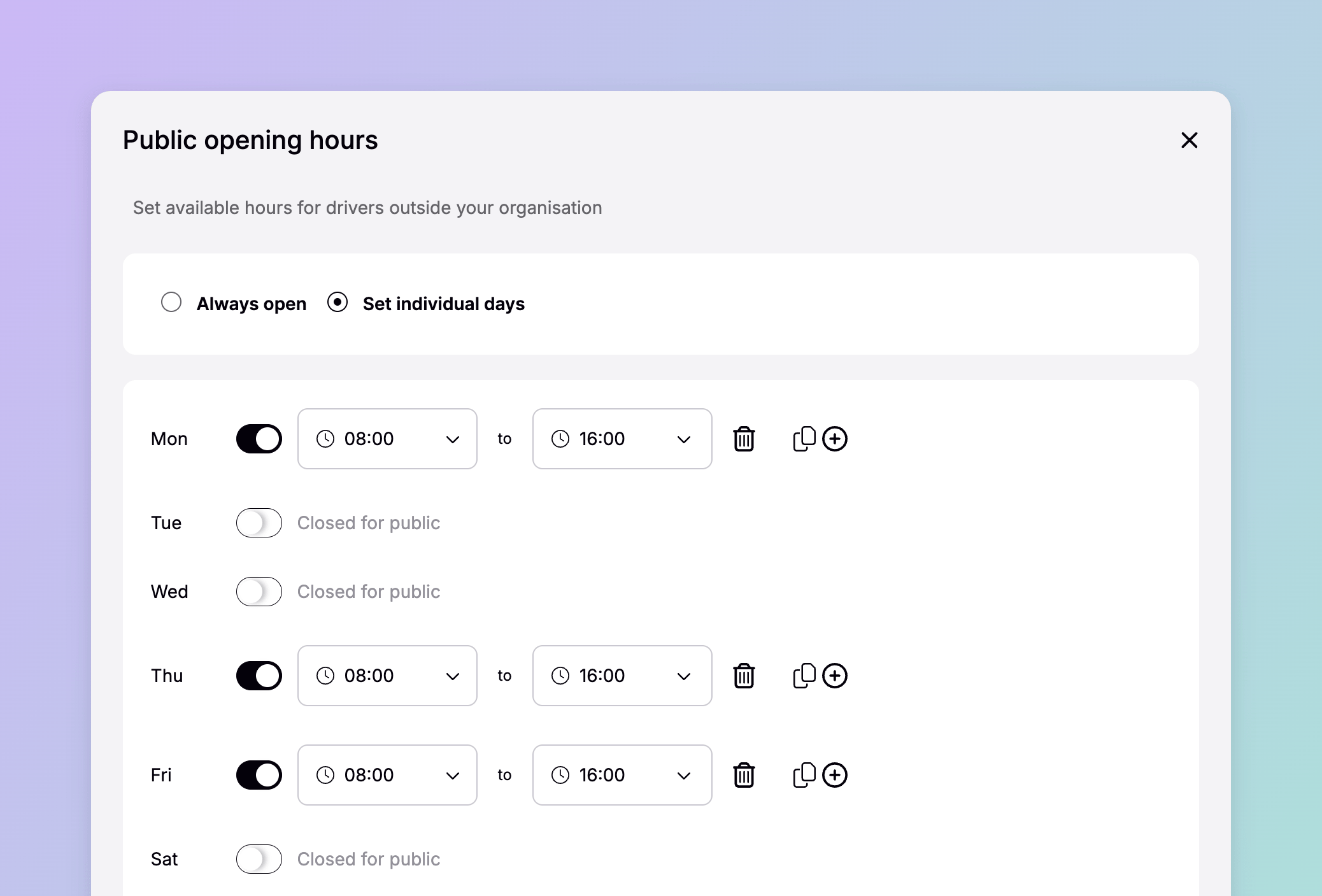
Adding chargers
With the location configured, you add chargers to it. Each charge box you connect sits on the location and inherits its tariff and publishing settings. Charger activation covers how a charger is provisioned and comes online. While a new charger is being tested and not yet ready for drivers, you can give it a commissioning temporary EVSE status so it doesn’t appear available until you’re ready.Dependencies & limitations
- A tariff is required. A location isn’t operational until it has a tariff, even if that tariff is 0 EUR. Residential locations are the exception.
- Create tariffs first. Tariffs are made on the Tariffs page, not inside the location flow, so create the one you need before configuring the location.
- Roaming has data requirements. A location reaches roaming networks only when it’s public, has a roaming tariff, carries accurate coordinates, and uses connector IDs in the required eMI3 format. See Roaming connection.
- Publishing controls discovery, not permission. These settings decide who can find and reach a site; who may actually charge is governed in Location access.
Related
Locations
What a location is, what it contains, and how it connects to the rest of the platform.
Pricing options and logic
How the tariff a location bills against is built.
Roaming connection
Publish a location to other networks, and how roaming is priced and settled.
Energy Management
Balance charging power across the chargers on a site.
Location access
Who can see and charge at a location, once it’s configured.
Charger activation
Provision the chargers that run on the location.