

Overview
Every charger runs on the platform as a charge box: the object representing the physical unit, holding the EVSEs and connectors that deliver power. Bringing one online is a two-part handshake. You create the charge box first, as a placeholder on a location; the physical charger connects to it afterwards, once your installer points it at Spirii. The platform links the two by identity, so the charger you configure on site and the charge box you created in the platform are the same unit. You can do the platform side in Spirii Connect, the admin web app, or through the Spirii API (the same connection, two interfaces). Either way the shape is the same: a charge box sits Pending until the charger reaches it, then goes Online and self-populates.How it works
1
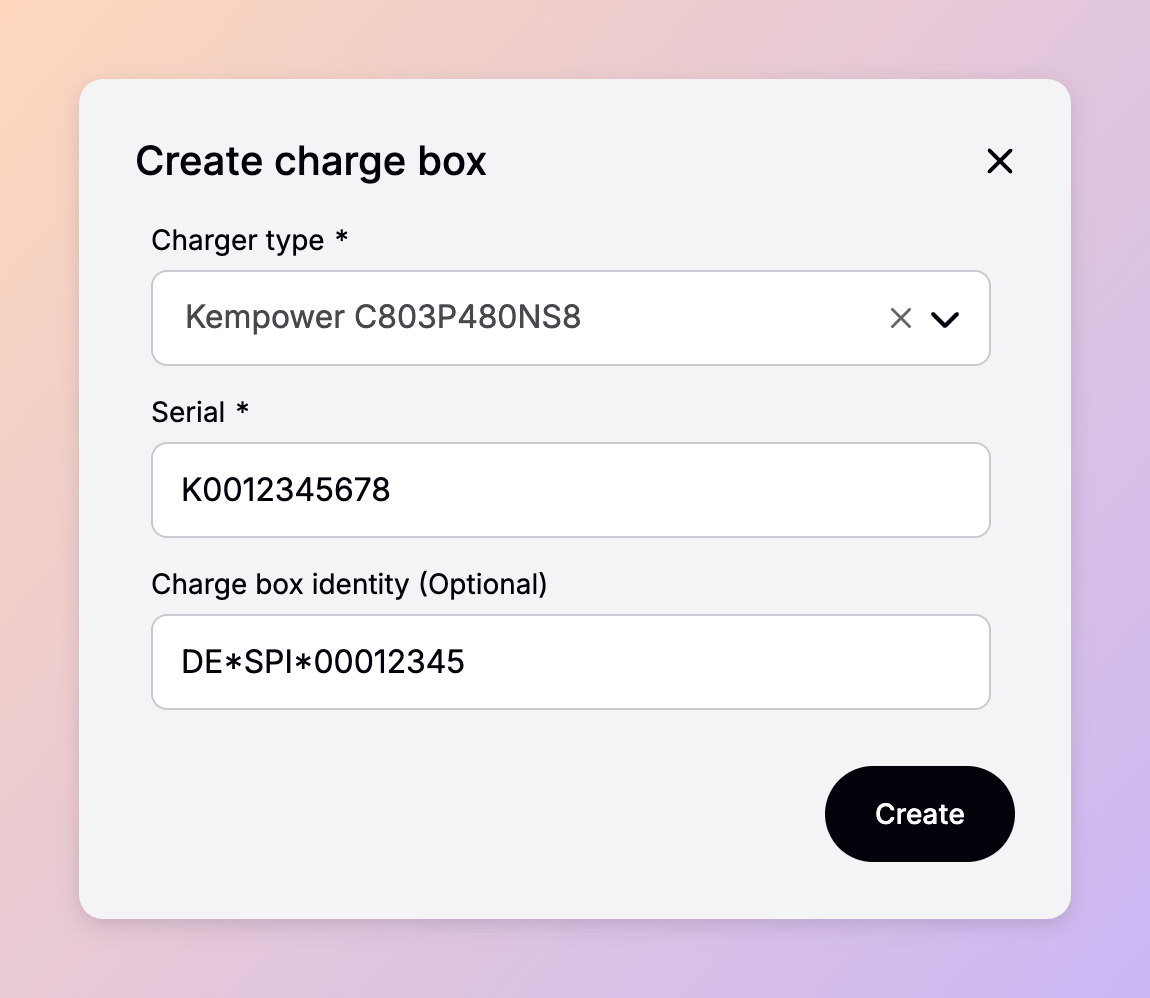
Create the charge box
You create the charge box against a location and give it the charger’s identity, the charge box ID (CBID). That reserves a placeholder with a status of Pending: the platform knows a charger is coming but hasn’t heard from it yet.
2
The installer configures the charger
Your installer then configures the physical charger to use Spirii as its OCPP backend, at the secure endpoint
wss://ocpp.spirii.com, presenting the same CBID as its OCPP identity. Matching identities is what lets the platform bind the connection to the charge box you created; a mismatch leaves the box stranded as Pending. Reaching the endpoint requires TLS 1.2, the AWS Root CA certificate, and the security profile information.3
The charger's first connection
On the charger’s first connection it sends a
BootNotification (the opening message of the OCPP handshake) and the platform reads back the unit’s details and provisions everything beneath it automatically. There’s no manual activation step: once the BootNotification arrives, the box comes Online and is ready to charge.Example
You add a charge box at Munich DC Hub for a new Alpitronic HYC_400, selecting its model and entering the CBIDDE*SPI*E00012345. The box is created Pending. Your installer points the charger at wss://ocpp.spirii.com using that identity, and within five to ten minutes it sends its first BootNotification. The platform records the vendor, the model (HYC_400), the firmware (hyc_2.4.0), and the EVSEs and connectors on the unit. Because the EVSE IDs are derived from the CBID, the unit’s connector comes up as DE*SPI*E00012345*1. The box is now Online.
If a charger hasn’t connected within about ten minutes, it usually needs a reboot to retry, or its OCPP configuration doesn’t match the charge box, most often the identity.
Connect or the API
Both interfaces do the same job. Choose by how many chargers you’re onboarding and whether the work is manual or programmatic.
A charge box created over the API behaves exactly as one created in Connect: it’s a placeholder in the same
Pending state, waiting on the same BootNotification.
Configuration
A charge box carries the settings that govern how the unit runs: its OCPP configuration, connector setup, and model-specific controls. When a charger first connects, the platform reads back the manufacturer’s defaults for its model and firmware, so a newly connected box already holds a working configuration you can then adjust. Rather than tune every value by hand, you can import a full configuration from another charger of the same model and firmware version. This is the fastest way to bring a second identical unit up to your preferred setup, and it’s worth standardising on when you run several of the same model across a site.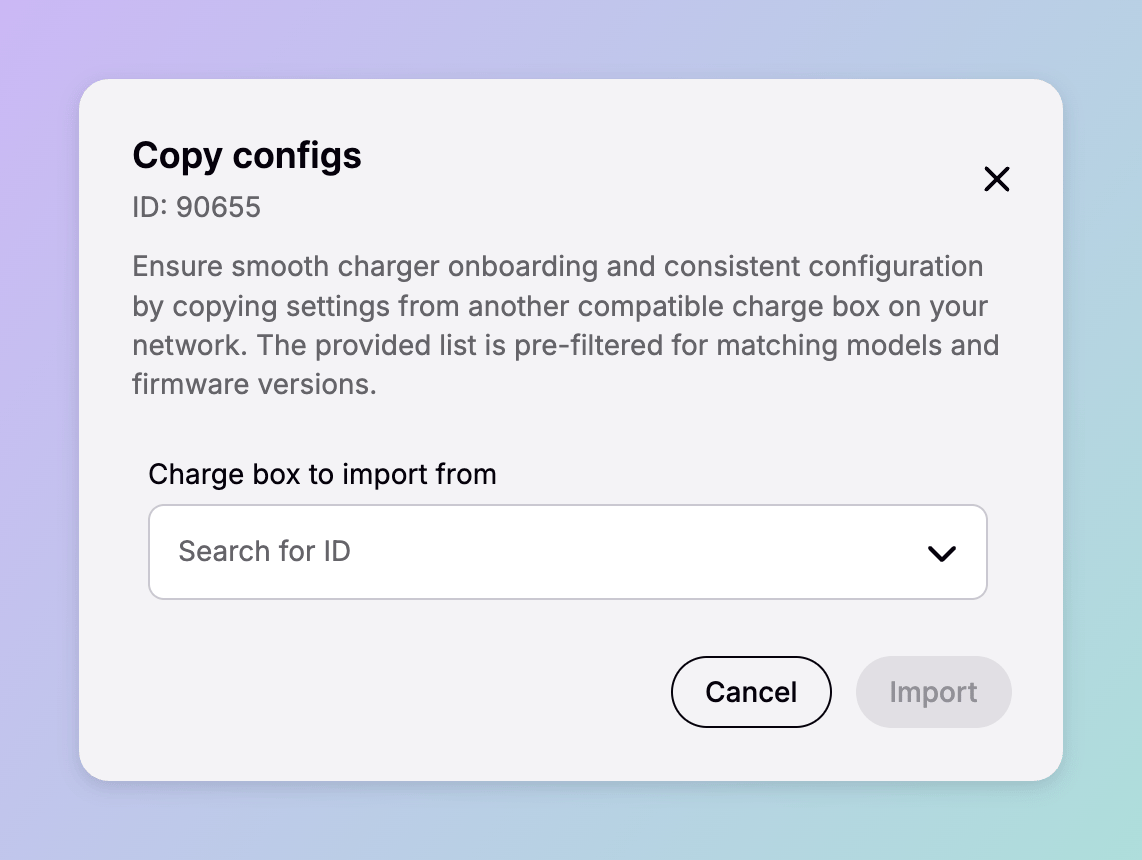
Set up
Before you connect a charger you need three things in place:A validated charger model
A validated charger model
Connection and configuration are supported on the models Spirii has tested; check whether yours is covered before you commit hardware (see Dependencies below).
A location to place it on
A location to place it on
The charge box is created against a location, which gives it its address, access, and pricing.
Access to create it
Access to create it
Operator access in Connect, or API credentials. See Authentication for the API path.
Dependencies & limitations
- Validated hardware only. Chargers connect and configure reliably on models Spirii has validated. See Charger validation for what’s tested and where to check a model. Model validation also records whether a model supports firmware management and Plug & Charge, so hardware capabilities are known before onboarding rather than discovered after.
- OCPP 1.6J. Chargers connect to the platform over OCPP 1.6J. The charger’s OCPP identity must match the CBID on the charge box, or the connection won’t bind.
- Configuration import needs a matching charger. You can only import a configuration from a charger of the same model and the same firmware version, because the available configuration keys differ across both.
- Deleting or moving a charger. Deletion is a soft delete, and a charge box can’t be deleted while it has an active charging session. To move a charger to another location, delete it from the old one and recreate it at the new one; its history and charge detail records stay with the original location, and the recreated box starts fresh.
Related
Charge boxes
The object a charger runs as, and where its firmware, connectivity, and logs live.
EVSEs and connectors
The charging units provisioned automatically beneath a connected charge box.
Quick start for CPOs
The full walkthrough: customer, location, charge box, and first charge.
Charge boxes API
Create and manage charge boxes programmatically.
Energy Management
Bind a charger to a circuit to balance power across a site.
Remote commands
Act on a connected charger from the platform: reset, remote start and stop, unlock connector.