

Overview
Both pages read the same live data from your charge boxes and shape it differently: Connectors gives you a row per connector, Ongoing sessions a row per session.Connectors
Your infrastructure, connector by connector. Status, power, consumption, and who is plugged in.
Ongoing sessions
Every session in progress, on your chargers and on other networks your drivers use.
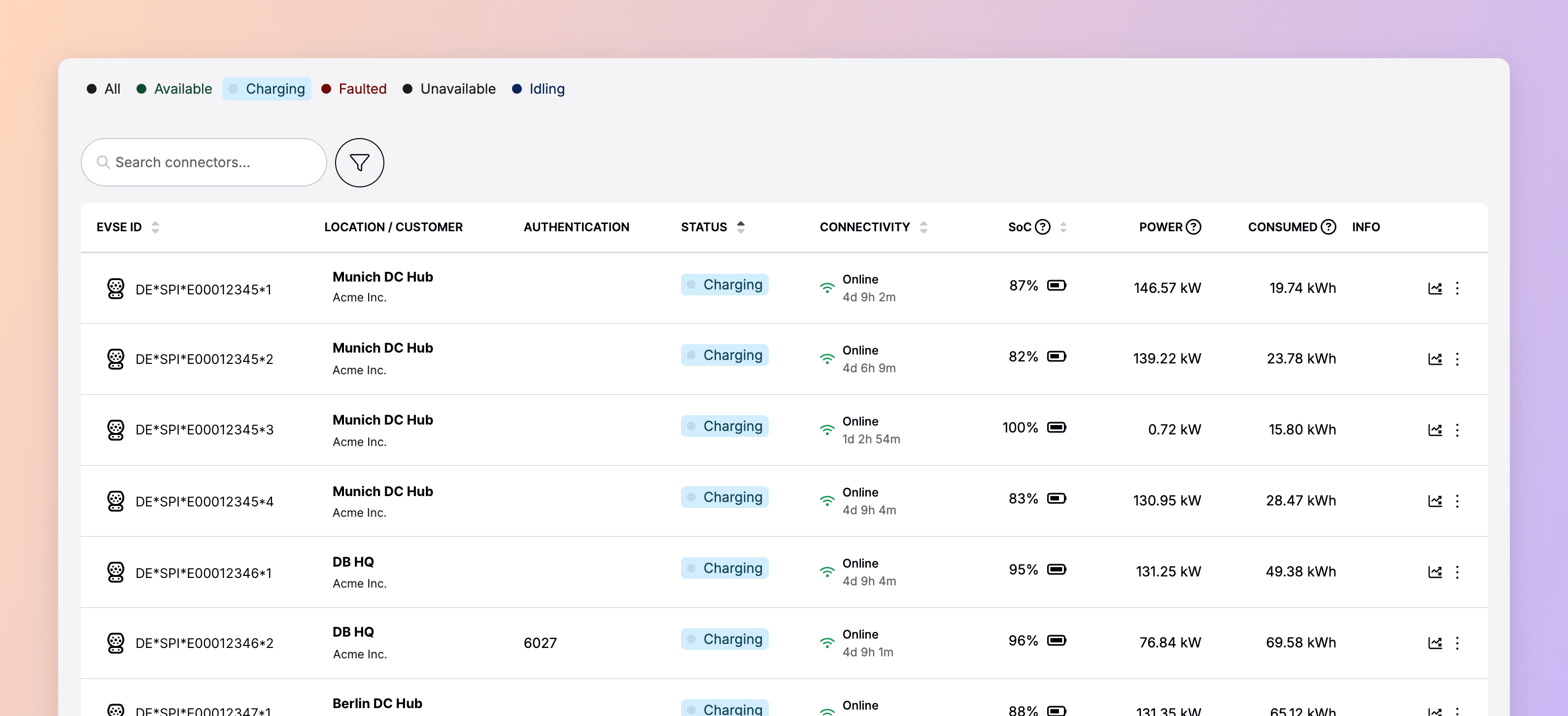
DE*SPI*E00012345*3 at 100% state of charge, power fallen to 0.72 kW, is a vehicle that has finished and can go. A bay still delivering a fraction of its rated power halfway through a shift is a van that will not be ready when its driver expects it.
Connectors updates as new data arrives from your charge boxes, not on a fixed refresh. That keeps it close to real time. Freshness still varies row by row, because each reading is only as current as that charge box’s own OCPP reporting interval allows. Two connectors on the same page can differ.
An ongoing session is the live half of a session’s life. Once it ends it becomes a charge detail record, immutable and ready for billing.
Live status tracking covers the first two steps. See Sessions and CDRs for how the record itself is structured.
Connectors
Connectors lists every connector available to you, including those at locations owned by customers beneath you in the hierarchy. To narrow the view to one customer’s infrastructure, use impersonation.What each column shows
Read Connectivity and Status together. A faulted connector on an online charge box can tell you what is wrong; when the charge box itself is offline, the status beside it is the last one it managed to send.
The Authentication column is the fastest way to tell how a session was authorised:
A charge key’s comment appears alongside its identifier. A fleet charge key reads as
DK.SPI.0012345 - Fleet Car #10, not as a bare identifier.
Filtering the list
Status quick-filters sit across the top of the page:
Idling groups four separate OCPP statuses under one filter: a connector plugged in but not yet drawing power, one that has finished and is waiting to be unplugged, and connectors paused by either the vehicle or the charge box. If you are reconciling against raw OCPP data, expect one Idling connector in Connect to be several different things underneath.
Alongside the quick-filters you can filter by location, selecting several at once, and by connector type, one at a time.
Acting from the list
The menu at the end of each row carries the remote commands for both the charge box and the individual connector. You can act on what you are looking at without leaving the page.Ongoing sessions
Ongoing sessions lists sessions that have started and not yet finished. Two tabs split it by side of the network: My charging network for your chargers, My Drivers for your charge keys.Ongoing sessions does not update on its own. If you are following a session while a driver is on the line, reload the page to see current figures.
My charging network (CPO)
Sessions running on connectors you operate, whoever started them. This is the same population you would see filtered to Charging on the Connectors page, presented per session rather than per connector.My Drivers (eMSP)
Sessions your charge keys started, wherever they are charging — including on other operators’ chargers over roaming.The charging curve
Selecting any session opens a modal with its charging curve and session data. The curve is how you tell a stalled session from one charging slowly by design. On another operator’s chargers it reflects whatever data that operator sends, and can be sparser than a curve from your own charge box.Stopping a session
Mark as Stopped, at the end of a session’s row, sends a stop command to the charge box. The charge box ends the session, and the platform finalises it, generates the charge detail record, and prices it. Only users with the Operator role can use it. An eMSP can stop a session on another operator’s charger the same way, which is the same action a driver takes from the app.Dependencies & limitations
- Live figures are only as fresh as the hardware allows. Connectors is bounded by each charge box’s OCPP reporting interval. Ongoing sessions does not refresh on its own at all — reload it, or follow the connector on Connectors instead.
- State of charge needs a DC charge box that receives and forwards it. It appears only on DC charging, and only where the charge box gets the value from the vehicle and is configured to send it.
- On another operator’s chargers, you see what that operator sends. Fewer fields, slower updates, and a sparser charging curve than a session on your own hardware.
- Only the Operator role can stop a session. Everyone else can watch a session but cannot use Mark as Stopped.
- Connectors lists what you operate. A partner with no chargers of their own sees an empty table.
Related
If you are reconciling live figures against billing, start with the completed record rather than the live view.Sessions and CDRs
How a session becomes an immutable, billable record.
Remote commands
The commands available from a connector’s row menu.
Charge keys
What appears in the Authentication column, and how comments are set.
Roaming
How sessions on other operators’ networks reach your driver view.