

Overview
It sits in Connect under Operations → Firmware Management, for users with the Operator role. The page lists the charge boxes you can update, what firmware each is running now, and how any update in progress is going. You supply the firmware file from your hardware manufacturer; Connect uploads it to the charge box and reports what happens. A charge box appears in the list when two things are true: Spirii has verified that its model supports remote firmware updates, and the charge box is online.1
Select the charge boxes
Pick one or more charge boxes from the list. Bulk selection works only across charge boxes of the same model and type.
2
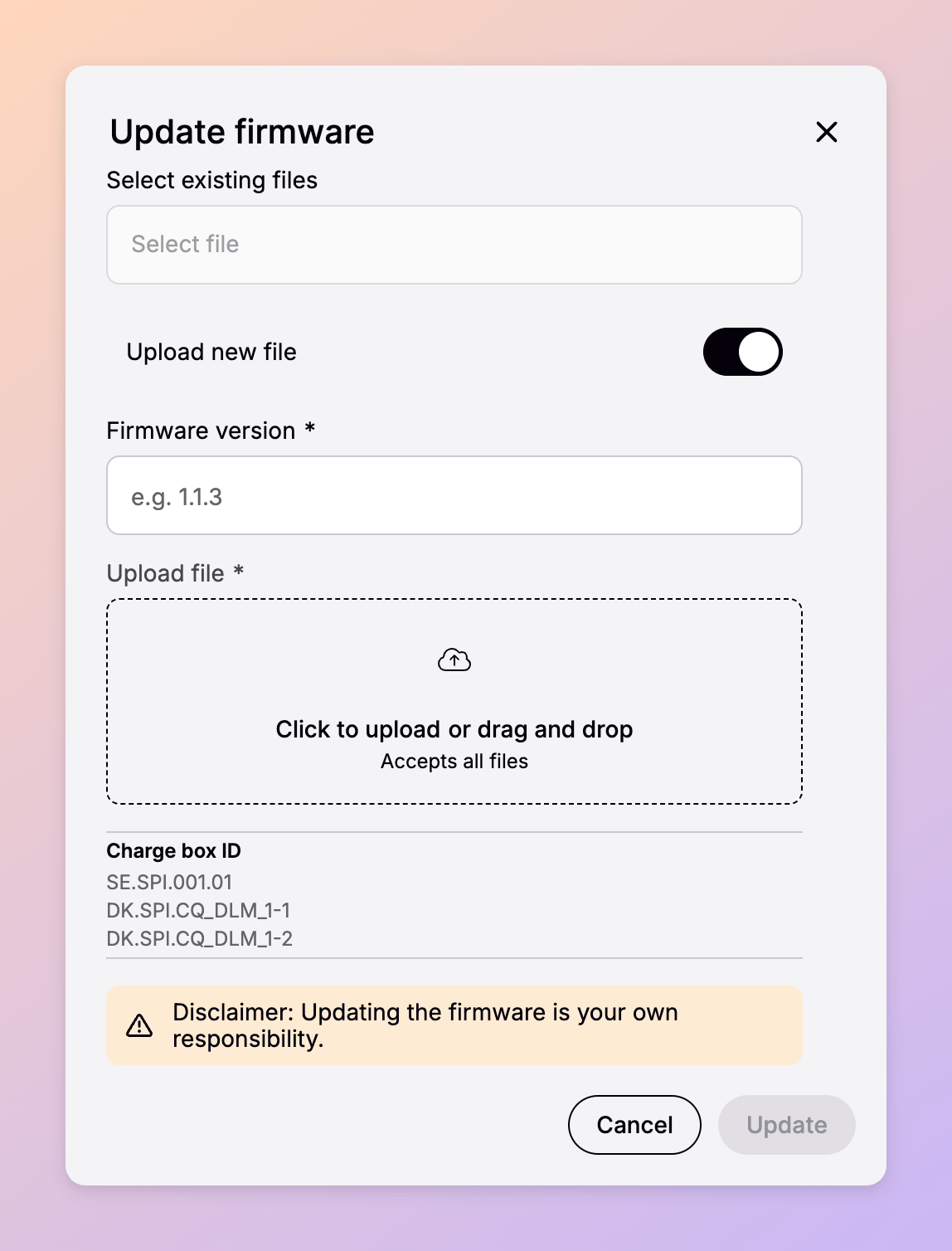
Choose or upload a firmware file
Select a file you have already uploaded, or add a new one from your hardware manufacturer.
3
The update is queued
If a charge box is mid-session, the update waits until the charge box becomes Available.
4
Installation runs
The charge box is taken out of service and the firmware installs, typically in 10–15 minutes, though this varies by manufacturer.
5
Firmware installed
The charge box returns to service on the new version, shown in its Current firmware column.
How it works
Working in the owning customer’s context
Charge boxes are owned by customers in your hierarchy, and firmware management acts in the owner’s context rather than yours. To reach a charge box owned by one of your customers, use Impersonate from the Connect menu and pick that customer’s account. The list then shows the charge boxes they own.What the firmware list shows
Each row gives you what you need to decide whether a charge box should be updated at all:Firmware files
Connect stores the firmware files you upload, scoped to your operator account. Each time you run an update you either pick a file you have already uploaded or add a new one. When you upload a file you also record its firmware version and release date. Those two fields are what make a stored file identifiable months later, once a filename from a manufacturer’s download page no longer tells anyone what it contains. Spirii hosts the file, and the charge box retrieves it when the installation runs.Installing and queueing
Select one or more charge boxes, choose a file, and start the update. Bulk selection works only across charge boxes of the same model and type, because a firmware file is written for a specific model. If a charge box is mid-session, the update waits until its status is Available. Installation then makes the charge box unavailable for charging, and typically takes 10 to 15 minutes, though this varies by manufacturer. The Installation status column tracks progress and Retries shows how many attempts have been made.A worked example
Rheinstrom GmbH operates a site owned by Lindenhof Housing, with six identical AC charge boxes. The manufacturer releases firmware 2.4.1, fixing a metering fault.
Rheinstrom impersonates Lindenhof Housing, opens Firmware Management, and sees all six charge boxes listed as online and running 2.3.8. Selecting all six is allowed because they are the same model. Rheinstrom uploads the manufacturer’s file, records the version and its release date, and starts the update.
Four charge boxes are idle and begin installing straight away. The other two are mid-session, so their status shows as queued and installation begins when each driver finishes. Each row shows 2.4.1 as its current firmware once installation completes.
When to use it
A manufacturer releases a security or stability fix. Select every charge box of that model at a site and install in one pass rather than working through them individually. Timing is worth planning. Each charge box is out of service while it installs, so a bulk update takes a site’s capacity down in stages. Running updates in a low-utilisation window costs fewer sessions than mid-afternoon at a busy hub.Dependencies & limitations
- Verified models only. A charge box appears in the list once Spirii has verified that its model supports remote firmware updates, following the same model-verification approach as other hardware-dependent features. Check with Spirii if a model you operate is missing, or see Charger validation.
- The charge box must be online. Offline charge boxes do not appear in the list.
- Bulk updates need matching models. You can select several charge boxes at once, but only of the same model and type.
- Updates queue behind charging. An update waits until the charge box status is Available, and a charge box in continuous use will keep waiting.
- No charging during the update. Expect 10 to 15 minutes out of service per charge box, varying by manufacturer.
- No cancel and no rollback. Once an update starts it runs to completion or fails, and the previous version cannot be restored.
- Files are scoped to your operator account. Uploaded firmware is not shared between operators.
- Connect only. There are no public API endpoints for firmware management.
Related
Before your first update, confirm with Spirii that the charge box models you operate have been verified for remote firmware updates.Customer management
The hierarchy that decides which customer owns a charge box.
Team access
Which roles in your organisation can reach the Operations area.
Charge boxes
What a charge box is, and how models and serial numbers identify one.
Remote commands
Other commands you can send to a charge box from Connect.