

Overview
Access in Connect has two independent dimensions, and every user has both:
A user tied to a customer sees that customer’s data; a colleague at your own company sees yours. Their role then decides whether they can only view it, edit it, or administer the platform. You find Team Access in the bottom-left of Connect, under your own name.
The customer side draws on the Customers model, where a user’s company and the customers beneath it in the hierarchy set the boundary of what they can reach. This page is about granting people access within that boundary and choosing what they can do.
Roles
A role sets which features and actions a user has across the data they can access. There are eight, ranging from Operator, which edits everything, down to narrow roles built for one job, such as Installer. A user can hold more than one at a time, and their access is the sum of them.Roles
What each of the eight roles can do, side by side, and how to pick one.
Who can assign which role
Roles sit in a hierarchy, and you can only assign a role at or below your own. An Editor can invite people as Editor, Supporter, User, or Viewer, but cannot make anyone an Operator — only an Operator can do that. The same limit applies when you change an existing user’s role. This is worth checking before you delegate user management. Handing someone Editor so they can onboard their own team means they’ll come back to you every time a new Operator is needed.Inviting a user
The same flow invites a colleague or a customer; the difference is which customer you scope them to.1
Open Team Access
In the bottom-left of Connect, click your name, then select Team Access.
2
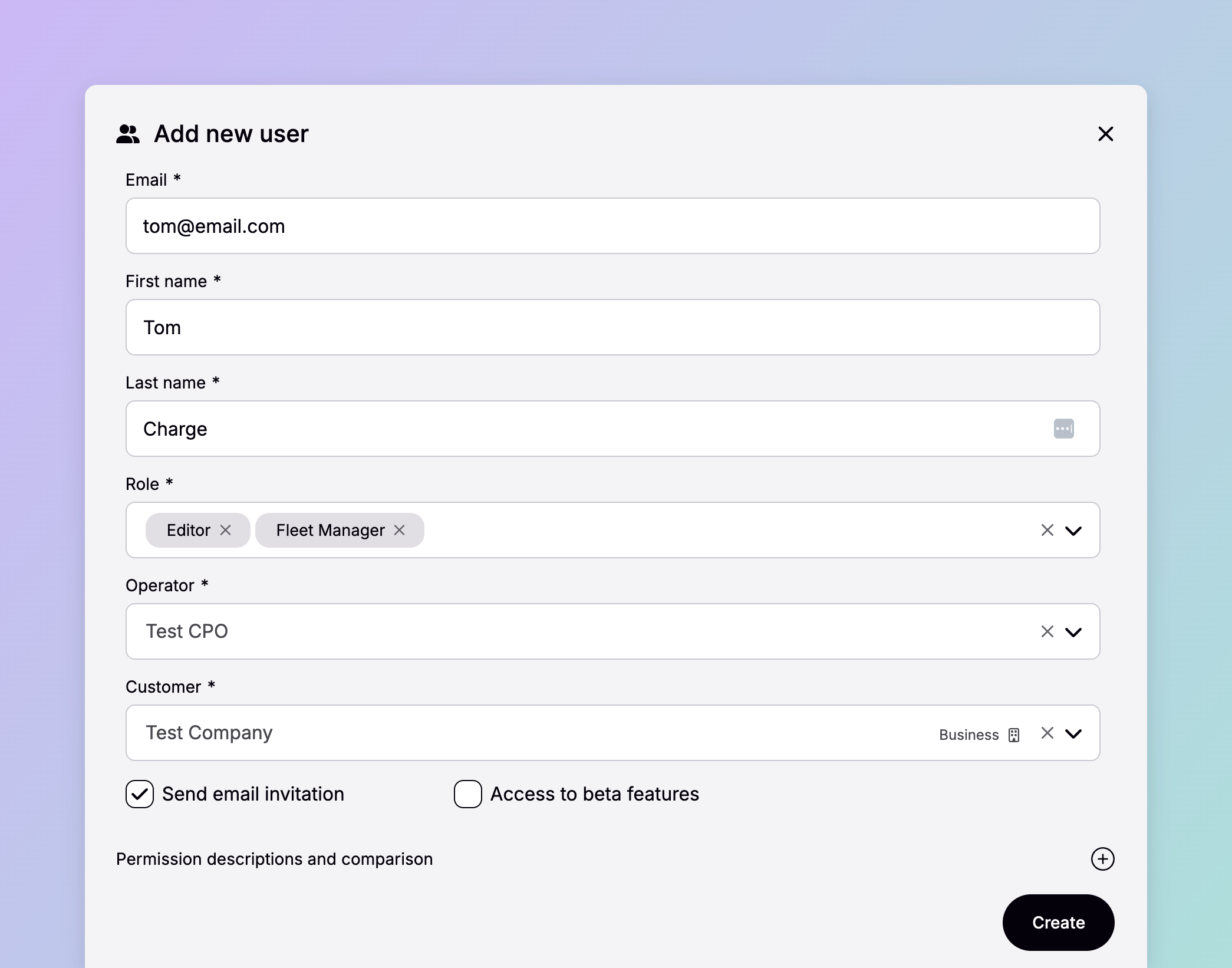
Add the user
Choose Add new user and enter their email address.
3
Scope their data access
Leave the customer as your own company for a colleague, or set a specific customer, such as Acme Inc., to give their user access to only that customer’s data.
4
Assign a role
Pick the role that matches what they need to do: a colleague running a site might be an Editor, a customer checking their own usage a Viewer. Where no single role fits, assign two — see Roles.
5
Send the invite
The user receives an email inviting them to set a password. On first login they’ll also set up multi-factor authentication.
Resetting a user’s MFA
Multi-factor authentication is required for every Connect user. When someone loses access to their authenticator (a lost or replaced phone, or a reinstalled app), an Operator or Editor resets it from Team Access: find the user, open the actions menu, and choose Reset MFA.Dependencies & limitations
- Only Operator and Editor can change users. Both can invite users, edit them, and reset MFA. A User can open Team Access and see who has access, but can’t change anything. Every other role has no access to the page at all.
- You can’t assign a role above your own. An Editor cannot create an Operator.
- MFA can’t be skipped. Every user sets up multi-factor authentication on first login; it’s mandatory.
- Data access is bounded by the hierarchy. A user can only ever reach data for their company and the customers beneath it; you can’t grant access outside that boundary. See Customers.
- Invites expire. An invitation needs to be accepted within a couple of days before it lapses and has to be resent.
Related
Roles
What each of the eight roles can do, side by side.
Customers
The company hierarchy that sets the boundary of a user’s data access.
Location access
Who can charge at a location, as opposed to who can administer the platform here.
First login
What an invited user does to set their password and MFA and get into Connect.