> ## Documentation Index
> Fetch the complete documentation index at: https://docs.spirii.com/llms.txt
> Use this file to discover all available pages before exploring further.
# Payment terminals
> Register your terminals and attach them to the charge boxes they take payment for.
A payment terminal is a card reader at a charging site that lets a driver authorise and pay for a charge by tapping a card or phone, with no app and no account.
 ## Overview
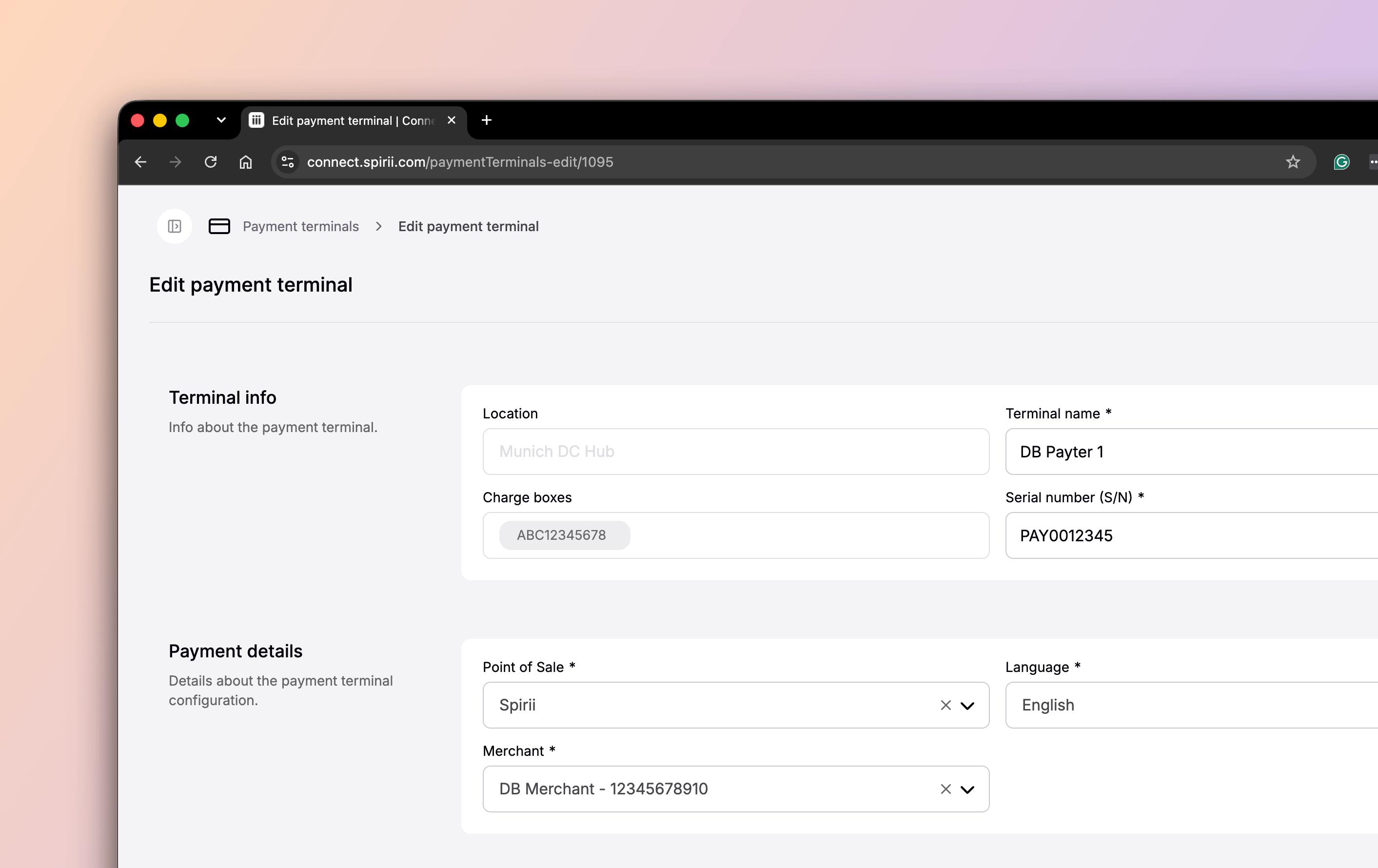
In Connect, a payment terminal is the record that represents one physical terminal. It carries the terminal's identity, the merchant whose name appears on driver receipts, and the charge boxes it takes payment for. Creating the record is what makes the terminal known to the Spirii platform, so its payments and sessions land against the right charge boxes.
Two things sit behind every terminal, and you choose them separately: the hardware, and the point-of-sale (POS) software running on it. One record names both.
For how in-person payment works end to end, and which integration approach suits your hardware, see [In-person payments](/capabilities/payments/in-person-payments).
Creating the record in Connect does not register the terminal with its manufacturer, and it does not obtain a Merchant ID (MID) from a payment service provider. Both are separate steps, and both come first. See [Set up a payment terminal](/guides/payment-terminal-setup) for the order.
## Context
A payment terminal is a CPO object. You register it and manage it; drivers never see the record, only the screen in front of them.
There is no payment terminal over [roaming](/capabilities/roaming/roaming-connection). What reaches an eMSP is the site's support for in-person card payment, published as an authentication method, so a driver's app can show that tapping a card works there. The terminal itself stays on the operator's side: its serial number, its merchant, and the charge boxes it serves do not cross the boundary.
## Key attributes
| Attribute | Description | Example |
| ----------------- | ------------------------------------------------------------------------------------------------------------------------------------------------- | -------------------------------------- |
| Name | Free-text label for finding the terminal in Connect | `Munich DC Hub – kiosk 1` |
| Serial number | Identifies the physical terminal. Must match the serial registered with the manufacturer, and can be corrected in Connect after the record exists | As printed on the unit |
| POS | The point-of-sale software running on the terminal | `Spirii POS` |
| Merchant | The merchant record whose name appears on driver receipts, and the party of record for the payment | `Acme Inc.` |
| Terminal language | The language Spirii POS uses on the driver-facing screen | `German` |
| Location | The site the terminal belongs to. A terminal serves one location | `Munich DC Hub` |
| Charge boxes | The charge boxes the terminal takes payment for, one or more on that location | `DE*SPI*E00012345`, `DE*SPI*E00012346` |
Merchants are their own records in Connect, created once and then selected here, so several terminals can share one merchant.
Registering a terminal in Connect completes the payment side of the setup. The record links the terminal to the charge boxes it serves and to a merchant, so in-person payments settle correctly and reach you through Spirii's billing and payout. Operating the terminal itself — connectivity and hardware health — stays in the manufacturer's portal. That is where to look if a terminal stops taking payment, since Connect holds the terminal's configuration rather than its live state.
## Relationships
A location owns both its charge boxes and the terminals that serve them. Each terminal also points at the merchant on its receipts and the POS running on it.
### One location, several charge boxes
A terminal belongs to one location and takes payment for one or more charge boxes on it. A charge box can carry more than one terminal.
Attaching several charge boxes to one terminal is kiosk mode: a single pole-mounted or wall-mounted terminal serving a row of chargers. On a public DC hub that saves fitting a terminal to every unit, and it gives drivers one place to pay.
With Spirii POS, the driver picks the connector on the terminal screen before paying, so one terminal can cover several charge boxes without ambiguity about what is being paid for.
### A terminal is not its POS
The terminal is hardware. The POS is the software running on it, and it owns everything the driver sees. Connect keeps both on one record because you choose them independently: you can run Spirii POS on a supported terminal, or register a terminal that runs the charger manufacturer's POS or a third-party POS.
| The terminal record controls | The POS controls |
| ----------------------------------------------------------- | ---------------------------------------------------------------- |
| Name and serial number | What the driver sees on screen, including the price and VAT rate |
| The location and charge boxes served | Connector selection |
| The merchant on driver receipts | The receipt, and the QR code that delivers it |
| How the terminal's revenue flows through billing and payout | Stopping a session from the terminal |
| | AFIR and Eichrecht compliance of the driver-facing flow |
Registering a terminal that runs another provider's POS still earns its place. The terminal is visible and managed in Connect, and its revenue flows through Spirii's billing and payout, including arrangements where Spirii is the merchant of record. What you give up is the driver-facing layer: that provider controls the screen, the receipt, and compliance for the payment flow.
Terminal language sets the Spirii POS display language. Where another provider's POS is running, that provider controls the language the driver sees.
## Used in
To register your first terminal, follow [Set up a payment terminal](/guides/payment-terminal-setup).
How Spirii POS, manufacturer, and third-party POS integrations work.
Register, configure, and go live with a terminal.
How terminal revenue reaches you, in turnkey and PAAS.
How terminal sessions appear in billing and reporting.
The units a terminal takes payment for.
The site a terminal belongs to.
## Overview
In Connect, a payment terminal is the record that represents one physical terminal. It carries the terminal's identity, the merchant whose name appears on driver receipts, and the charge boxes it takes payment for. Creating the record is what makes the terminal known to the Spirii platform, so its payments and sessions land against the right charge boxes.
Two things sit behind every terminal, and you choose them separately: the hardware, and the point-of-sale (POS) software running on it. One record names both.
For how in-person payment works end to end, and which integration approach suits your hardware, see [In-person payments](/capabilities/payments/in-person-payments).
Creating the record in Connect does not register the terminal with its manufacturer, and it does not obtain a Merchant ID (MID) from a payment service provider. Both are separate steps, and both come first. See [Set up a payment terminal](/guides/payment-terminal-setup) for the order.
## Context
A payment terminal is a CPO object. You register it and manage it; drivers never see the record, only the screen in front of them.
There is no payment terminal over [roaming](/capabilities/roaming/roaming-connection). What reaches an eMSP is the site's support for in-person card payment, published as an authentication method, so a driver's app can show that tapping a card works there. The terminal itself stays on the operator's side: its serial number, its merchant, and the charge boxes it serves do not cross the boundary.
## Key attributes
| Attribute | Description | Example |
| ----------------- | ------------------------------------------------------------------------------------------------------------------------------------------------- | -------------------------------------- |
| Name | Free-text label for finding the terminal in Connect | `Munich DC Hub – kiosk 1` |
| Serial number | Identifies the physical terminal. Must match the serial registered with the manufacturer, and can be corrected in Connect after the record exists | As printed on the unit |
| POS | The point-of-sale software running on the terminal | `Spirii POS` |
| Merchant | The merchant record whose name appears on driver receipts, and the party of record for the payment | `Acme Inc.` |
| Terminal language | The language Spirii POS uses on the driver-facing screen | `German` |
| Location | The site the terminal belongs to. A terminal serves one location | `Munich DC Hub` |
| Charge boxes | The charge boxes the terminal takes payment for, one or more on that location | `DE*SPI*E00012345`, `DE*SPI*E00012346` |
Merchants are their own records in Connect, created once and then selected here, so several terminals can share one merchant.
Registering a terminal in Connect completes the payment side of the setup. The record links the terminal to the charge boxes it serves and to a merchant, so in-person payments settle correctly and reach you through Spirii's billing and payout. Operating the terminal itself — connectivity and hardware health — stays in the manufacturer's portal. That is where to look if a terminal stops taking payment, since Connect holds the terminal's configuration rather than its live state.
## Relationships
A location owns both its charge boxes and the terminals that serve them. Each terminal also points at the merchant on its receipts and the POS running on it.
### One location, several charge boxes
A terminal belongs to one location and takes payment for one or more charge boxes on it. A charge box can carry more than one terminal.
Attaching several charge boxes to one terminal is kiosk mode: a single pole-mounted or wall-mounted terminal serving a row of chargers. On a public DC hub that saves fitting a terminal to every unit, and it gives drivers one place to pay.
With Spirii POS, the driver picks the connector on the terminal screen before paying, so one terminal can cover several charge boxes without ambiguity about what is being paid for.
### A terminal is not its POS
The terminal is hardware. The POS is the software running on it, and it owns everything the driver sees. Connect keeps both on one record because you choose them independently: you can run Spirii POS on a supported terminal, or register a terminal that runs the charger manufacturer's POS or a third-party POS.
| The terminal record controls | The POS controls |
| ----------------------------------------------------------- | ---------------------------------------------------------------- |
| Name and serial number | What the driver sees on screen, including the price and VAT rate |
| The location and charge boxes served | Connector selection |
| The merchant on driver receipts | The receipt, and the QR code that delivers it |
| How the terminal's revenue flows through billing and payout | Stopping a session from the terminal |
| | AFIR and Eichrecht compliance of the driver-facing flow |
Registering a terminal that runs another provider's POS still earns its place. The terminal is visible and managed in Connect, and its revenue flows through Spirii's billing and payout, including arrangements where Spirii is the merchant of record. What you give up is the driver-facing layer: that provider controls the screen, the receipt, and compliance for the payment flow.
Terminal language sets the Spirii POS display language. Where another provider's POS is running, that provider controls the language the driver sees.
## Used in
To register your first terminal, follow [Set up a payment terminal](/guides/payment-terminal-setup).
How Spirii POS, manufacturer, and third-party POS integrations work.
Register, configure, and go live with a terminal.
How terminal revenue reaches you, in turnkey and PAAS.
How terminal sessions appear in billing and reporting.
The units a terminal takes payment for.
The site a terminal belongs to.