> ## Documentation Index
> Fetch the complete documentation index at: https://docs.spirii.com/llms.txt
> Use this file to discover all available pages before exploring further.
# Service level agreements
> Tell your team which sites carry a tighter commitment.
Service level agreements (SLAs) let you record the response times you have agreed with your customers and bind them to the locations they cover, so anyone working an issue can see which sites take priority.
 ## Overview
Not every location deserves the same response. A high-traffic DC hub losing a charge box costs more per hour than a quiet suburban AC site, and your agreements with your customers usually reflect that.
An SLA in Connect captures one of those agreements: a name, the response times you have committed to, and who to call for on-site work. Every location is bound to one.
You manage SLAs in Connect under **Operations → Service Level Agreements**, which is available to users with the Operator role.
These are your agreements with your own customers. Any service commitments acquired from Spirii's support teams are not displayed or configured here.
An SLA documents the priority attached to a location and the contacts behind it. Connect keeps the response times visible to whoever is working an issue; you measure performance against them in your own service desk.
## How it works
### What an SLA records
| Field | What it does | Example |
| ------------------------- | ----------------------------------------------------- | ---------------------------------- |
| Name | Identifies the SLA in the list and on bound locations | `Critical sites` |
| Description | Context for whoever reads it later | `DC hubs on the motorway corridor` |
| 1st level resolution time | Your first-response deadline. Mandatory | `4 hours` |
| 2nd level resolution time | Your escalation deadline. Mandatory | `8 hours` |
| Restrict to weekdays | Set per level, so weekends stop the clock | `Off` |
| Installer or OEM contact | Free text for whoever attends on site | `Nord Elektro, +49 89 1234 5678` |
| Default | Applies this SLA to new locations. One SLA at a time | `On` |
### The two resolution levels
Both levels are mandatory, and each carries its own **Restrict to weekdays** option, so a weekday-only first level can sit alongside a second level that counts weekends.
The labels follow a conventional support escalation:
The initial response: an agent picking up the report and attempting remote diagnosis, including sending commands to the charge box.
The deeper technical pass for issues that survive the first, reading OCPP logs and interrogating platform data.
Conventionally third line, and an SLA has no deadline field for it. Instead it carries the installer or OEM contact, so whoever is working the issue knows who to call.
How you define each level, and whether you treat the two deadlines as cumulative or independent, is yours to decide. Connect stores both figures as you enter them and does not add them together.
### Binding SLAs to locations
Mark one SLA as **Default** and every location created afterwards is bound to it automatically. Marking a different SLA as default moves that flag, but it does not reassign locations that were already bound to the old one.
For locations that need something other than the default, bind them manually in either direction:
* From the SLA's **Locations** tab, search for locations and bind them in bulk
* From a location's edit screen, pick the SLA at the bottom of the page
A location bound to anything other than the default carries a flag. Whoever picks up an issue sees the exception rather than having to remember it.
### What your customers see
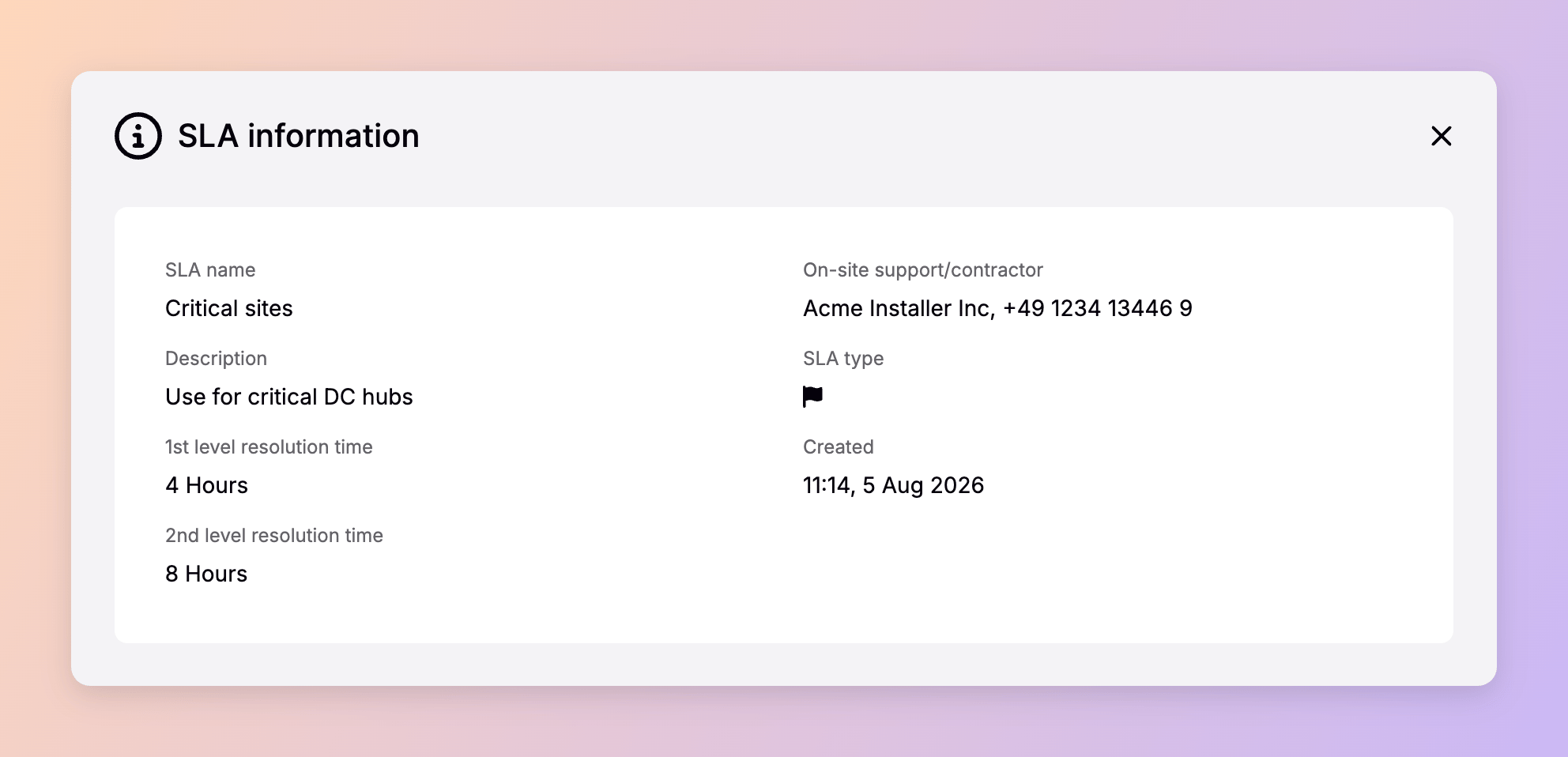
Anyone viewing a location can click its SLA name to open a modal showing the response times and details. That includes your customers, on the locations they own, so the commitment is visible to the party you made it to. The Service Level Agreements page itself, where SLAs are created and edited, remains operator-only.
### A worked example
`Rheinstrom GmbH` runs a mixed estate. It creates an SLA named `Standard`, with a 24-hour first level and a 48-hour second level, both restricted to weekdays, and marks it as default. Every new location it adds is bound to `Standard` without anyone touching it.
`Munich DC Hub` is different: high-traffic DC, and Rheinstrom has committed to a four-hour response including weekends. So Rheinstrom creates a second SLA named `Critical sites` with 4-hour and 8-hour levels, weekday restriction off, and the site installer's number in the contact field. From that SLA's Locations tab, it binds `Munich DC Hub`.
An agent opening `Munich DC Hub` months later sees the flag, clicks the SLA name, and has the four-hour commitment and the installer's number in front of them.
## When to use it
**One default, and specials only where the commitment genuinely differs.** The flag on a non-default location is only useful while non-default locations are rare. An estate where half the sites carry bespoke SLAs gives an agent nothing to notice, and each extra SLA is another record to keep aligned with the contract behind it.
**Create the default before you start adding locations.** Locations inherit the default at creation, so setting it up first saves binding them by hand afterwards.
## Dependencies & limitations
* **SLAs document; your service desk measures.** An SLA records the commitment and the contacts, and makes them visible on the locations it covers. Performance against the response times is tracked in your own service desk.
* **Operators only.** Creating and editing SLAs requires the Operator role. Customers can view an SLA on their own locations but cannot reach the Service Level Agreements page.
* **Changing the default is not retroactive.** Locations bound to a previous default stay bound to it.
* **Deleting an SLA leaves locations without one.** Locations bound to a deleted SLA end up with no SLA rather than falling back to the default, so rebind them before you delete it.
* **One SLA per location.** A location carries a single SLA at a time.
* **Contact details are free text.** The installer or OEM contact is not validated and is not linked to a contact record elsewhere in the platform.
## Related
To bind an SLA to a site, use the SLA's **Locations** tab, or pick it from the location's edit screen.
Where a location's SLA is bound, alongside its other settings.
The customers your agreements are with, and the hierarchy they sit in.
What a location is, and what else it anchors.
The remote diagnosis a first-level response usually starts with.
## Overview
Not every location deserves the same response. A high-traffic DC hub losing a charge box costs more per hour than a quiet suburban AC site, and your agreements with your customers usually reflect that.
An SLA in Connect captures one of those agreements: a name, the response times you have committed to, and who to call for on-site work. Every location is bound to one.
You manage SLAs in Connect under **Operations → Service Level Agreements**, which is available to users with the Operator role.
These are your agreements with your own customers. Any service commitments acquired from Spirii's support teams are not displayed or configured here.
An SLA documents the priority attached to a location and the contacts behind it. Connect keeps the response times visible to whoever is working an issue; you measure performance against them in your own service desk.
## How it works
### What an SLA records
| Field | What it does | Example |
| ------------------------- | ----------------------------------------------------- | ---------------------------------- |
| Name | Identifies the SLA in the list and on bound locations | `Critical sites` |
| Description | Context for whoever reads it later | `DC hubs on the motorway corridor` |
| 1st level resolution time | Your first-response deadline. Mandatory | `4 hours` |
| 2nd level resolution time | Your escalation deadline. Mandatory | `8 hours` |
| Restrict to weekdays | Set per level, so weekends stop the clock | `Off` |
| Installer or OEM contact | Free text for whoever attends on site | `Nord Elektro, +49 89 1234 5678` |
| Default | Applies this SLA to new locations. One SLA at a time | `On` |
### The two resolution levels
Both levels are mandatory, and each carries its own **Restrict to weekdays** option, so a weekday-only first level can sit alongside a second level that counts weekends.
The labels follow a conventional support escalation:
The initial response: an agent picking up the report and attempting remote diagnosis, including sending commands to the charge box.
The deeper technical pass for issues that survive the first, reading OCPP logs and interrogating platform data.
Conventionally third line, and an SLA has no deadline field for it. Instead it carries the installer or OEM contact, so whoever is working the issue knows who to call.
How you define each level, and whether you treat the two deadlines as cumulative or independent, is yours to decide. Connect stores both figures as you enter them and does not add them together.
### Binding SLAs to locations
Mark one SLA as **Default** and every location created afterwards is bound to it automatically. Marking a different SLA as default moves that flag, but it does not reassign locations that were already bound to the old one.
For locations that need something other than the default, bind them manually in either direction:
* From the SLA's **Locations** tab, search for locations and bind them in bulk
* From a location's edit screen, pick the SLA at the bottom of the page
A location bound to anything other than the default carries a flag. Whoever picks up an issue sees the exception rather than having to remember it.
### What your customers see
Anyone viewing a location can click its SLA name to open a modal showing the response times and details. That includes your customers, on the locations they own, so the commitment is visible to the party you made it to. The Service Level Agreements page itself, where SLAs are created and edited, remains operator-only.
### A worked example
`Rheinstrom GmbH` runs a mixed estate. It creates an SLA named `Standard`, with a 24-hour first level and a 48-hour second level, both restricted to weekdays, and marks it as default. Every new location it adds is bound to `Standard` without anyone touching it.
`Munich DC Hub` is different: high-traffic DC, and Rheinstrom has committed to a four-hour response including weekends. So Rheinstrom creates a second SLA named `Critical sites` with 4-hour and 8-hour levels, weekday restriction off, and the site installer's number in the contact field. From that SLA's Locations tab, it binds `Munich DC Hub`.
An agent opening `Munich DC Hub` months later sees the flag, clicks the SLA name, and has the four-hour commitment and the installer's number in front of them.
## When to use it
**One default, and specials only where the commitment genuinely differs.** The flag on a non-default location is only useful while non-default locations are rare. An estate where half the sites carry bespoke SLAs gives an agent nothing to notice, and each extra SLA is another record to keep aligned with the contract behind it.
**Create the default before you start adding locations.** Locations inherit the default at creation, so setting it up first saves binding them by hand afterwards.
## Dependencies & limitations
* **SLAs document; your service desk measures.** An SLA records the commitment and the contacts, and makes them visible on the locations it covers. Performance against the response times is tracked in your own service desk.
* **Operators only.** Creating and editing SLAs requires the Operator role. Customers can view an SLA on their own locations but cannot reach the Service Level Agreements page.
* **Changing the default is not retroactive.** Locations bound to a previous default stay bound to it.
* **Deleting an SLA leaves locations without one.** Locations bound to a deleted SLA end up with no SLA rather than falling back to the default, so rebind them before you delete it.
* **One SLA per location.** A location carries a single SLA at a time.
* **Contact details are free text.** The installer or OEM contact is not validated and is not linked to a contact record elsewhere in the platform.
## Related
To bind an SLA to a site, use the SLA's **Locations** tab, or pick it from the location's edit screen.
Where a location's SLA is bound, alongside its other settings.
The customers your agreements are with, and the hierarchy they sit in.
What a location is, and what else it anchors.
The remote diagnosis a first-level response usually starts with.