> ## Documentation Index
> Fetch the complete documentation index at: https://docs.spirii.com/llms.txt
> Use this file to discover all available pages before exploring further.
# Impersonation
> See Connect with one customer's data, without leaving your own account.
Impersonation filters Connect down to a single customer's data, so you see the locations, chargers, and records that customer sees.
 ## Overview
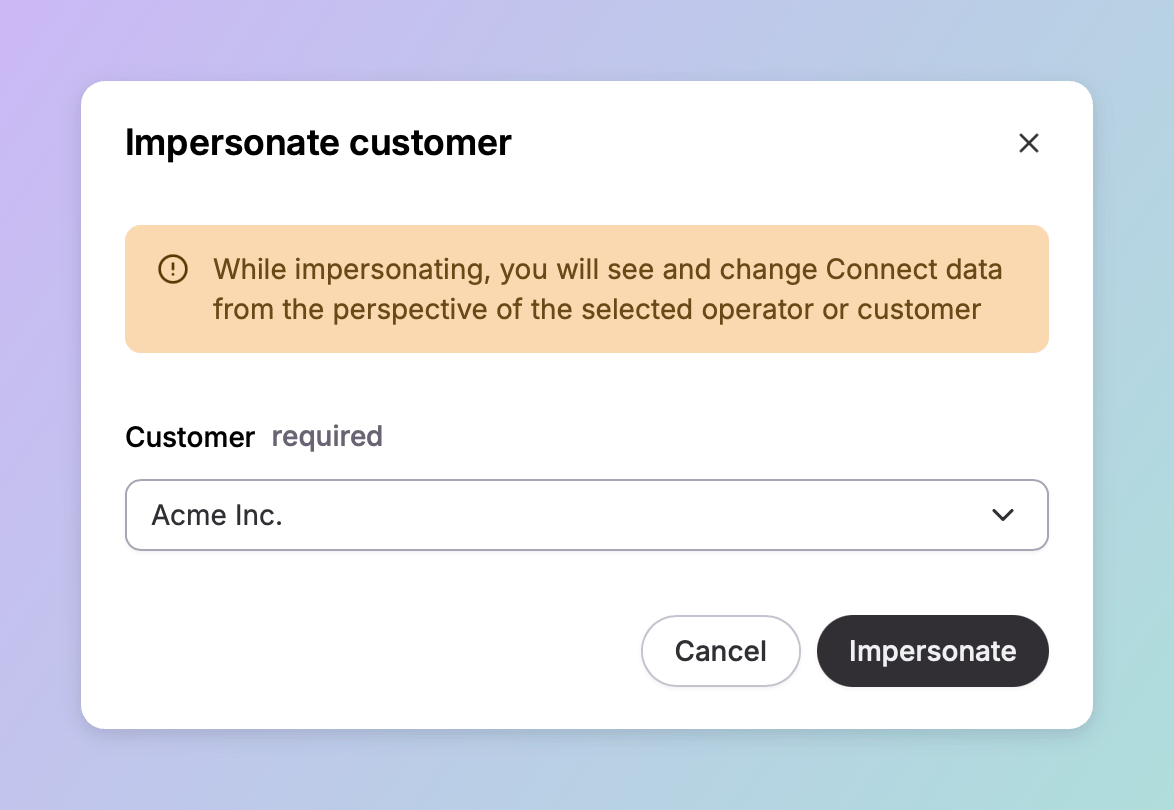
Supporting a customer is easier when you are looking at what they are looking at. Impersonation gives you that: pick one of your customers, and Connect hides everything that is not theirs.
It is available to users with the Operator role. Impersonation stays active across every page in Connect until you stop it, so a yellow border frames the screen throughout, with the selected customer named at the bottom next to a **Stop** control.
## What changes, and what does not
**Data is filtered.** Locations, chargers, sessions, tariffs, and records narrow to the customer you selected, along with any customers beneath them in the hierarchy. Everything else is hidden.
**Your permissions are not.** You keep your own access the whole time. If your role reaches a setting your customer's role cannot, that setting is still there in front of you.
If a customer reports that they cannot find something, impersonating them will not reproduce it — you will still see it with your own access. Check their role in [Team access](/capabilities/account/user-management) instead.
## Starting and stopping
Click your name at the bottom left of the menu and choose **Impersonate**, then pick a customer from the list. The yellow border appears and Connect reloads into that customer's view.
To return to your own view, use the **Stop** control at the bottom, next to the customer's name.
## When to use it
**Reproducing what a customer is looking at.** The original case, and still the most common one. A customer describing a report or a list they cannot make sense of is far easier to help when you are seeing the same rows.
**Working within a customer's context.** Some operations act on the owning customer rather than on you, so impersonation is how you reach them. Selecting a customer's charge boxes for a [firmware update](/capabilities/operation-monitoring/firmware-management) is one — the list only offers charge boxes belonging to whoever you are impersonating.
**Narrowing an operational view.** On pages that span your whole network — the [Connectors page](/capabilities/operation-monitoring/live-status-tracking), the [Monitoring list](/capabilities/operation-monitoring/faults-and-alerts) — impersonating a customer scopes the rows to one estate.
## Dependencies & limitations
* **Operator role only.** Other roles do not have the option.
* **Data, not permissions.** Impersonation filters what you can see. It does not reduce what you can do, so it will not reproduce a customer's access problem.
* **Actions take effect.** This is not a preview mode. Work you do while impersonating is real work on that customer's data.
* **One customer at a time.** You select a single customer, and their descendants come with them.
## Related
If a customer's problem turns out to be about access rather than data, their role is where to look.
Roles, and what each one can reach.
The hierarchy that decides which customers you can impersonate.
What a customer is, and the two sides of the relationship it can represent.
An operation that acts in the owning customer's context.
## Overview
Supporting a customer is easier when you are looking at what they are looking at. Impersonation gives you that: pick one of your customers, and Connect hides everything that is not theirs.
It is available to users with the Operator role. Impersonation stays active across every page in Connect until you stop it, so a yellow border frames the screen throughout, with the selected customer named at the bottom next to a **Stop** control.
## What changes, and what does not
**Data is filtered.** Locations, chargers, sessions, tariffs, and records narrow to the customer you selected, along with any customers beneath them in the hierarchy. Everything else is hidden.
**Your permissions are not.** You keep your own access the whole time. If your role reaches a setting your customer's role cannot, that setting is still there in front of you.
If a customer reports that they cannot find something, impersonating them will not reproduce it — you will still see it with your own access. Check their role in [Team access](/capabilities/account/user-management) instead.
## Starting and stopping
Click your name at the bottom left of the menu and choose **Impersonate**, then pick a customer from the list. The yellow border appears and Connect reloads into that customer's view.
To return to your own view, use the **Stop** control at the bottom, next to the customer's name.
## When to use it
**Reproducing what a customer is looking at.** The original case, and still the most common one. A customer describing a report or a list they cannot make sense of is far easier to help when you are seeing the same rows.
**Working within a customer's context.** Some operations act on the owning customer rather than on you, so impersonation is how you reach them. Selecting a customer's charge boxes for a [firmware update](/capabilities/operation-monitoring/firmware-management) is one — the list only offers charge boxes belonging to whoever you are impersonating.
**Narrowing an operational view.** On pages that span your whole network — the [Connectors page](/capabilities/operation-monitoring/live-status-tracking), the [Monitoring list](/capabilities/operation-monitoring/faults-and-alerts) — impersonating a customer scopes the rows to one estate.
## Dependencies & limitations
* **Operator role only.** Other roles do not have the option.
* **Data, not permissions.** Impersonation filters what you can see. It does not reduce what you can do, so it will not reproduce a customer's access problem.
* **Actions take effect.** This is not a preview mode. Work you do while impersonating is real work on that customer's data.
* **One customer at a time.** You select a single customer, and their descendants come with them.
## Related
If a customer's problem turns out to be about access rather than data, their role is where to look.
Roles, and what each one can reach.
The hierarchy that decides which customers you can impersonate.
What a customer is, and the two sides of the relationship it can represent.
An operation that acts in the owning customer's context.