> ## Documentation Index
> Fetch the complete documentation index at: https://docs.spirii.com/llms.txt
> Use this file to discover all available pages before exploring further.
# Branding
> Brand Connect for your customers, and your locations for drivers.
Branding lets you replace Spirii's logo in Connect with your own, and set the name drivers see for your charging locations.
 ## Overview
Two settings sit behind branding, and they reach different audiences.
Your logo in place of Spirii's, for everyone who signs in to Connect under your account. Operators only.
The name drivers see for your locations in charging apps and over roaming. Set per customer.
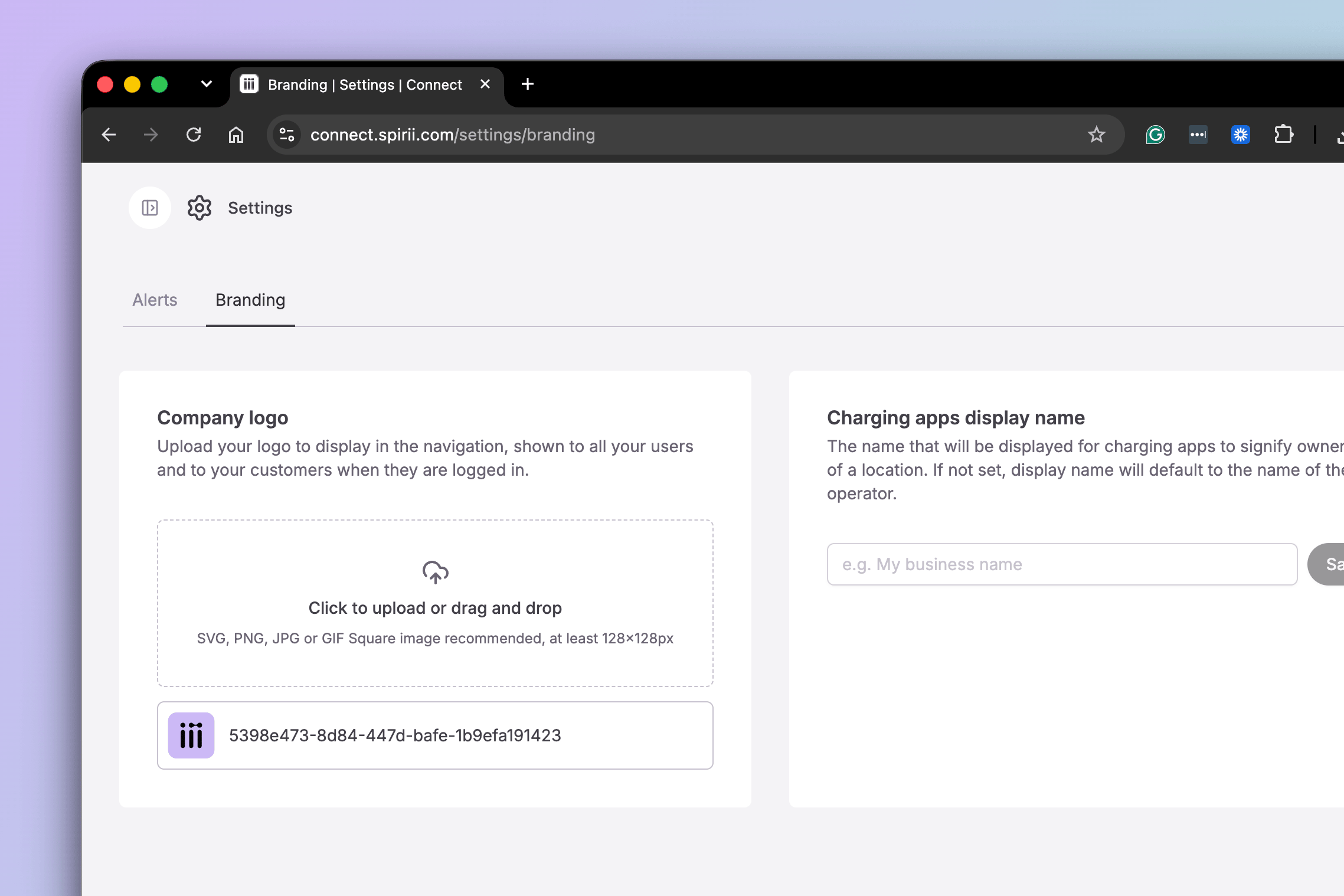
The logo brands the platform your team and your customers work in. The display name brands what drivers see when they find and use your chargers. Neither costs anything — both are included with your account, and both are configured in Connect under **Settings → Branding**, where they sit next to each other.
The Connect logo does not reach drivers. It brands Connect and the emails the platform sends, and nothing in Spirii Go or a branded app. Driver-facing app branding is a separate product.
## The Connect logo
Upload a logo and it replaces Spirii's in the top-left corner of Connect for you, your colleagues, and every customer beneath you in the hierarchy when they sign in. It also appears on emails the platform generates: invitations to new users, password resets, and alert notifications.
Only an Operator can set it, and there is one logo per operator account. A customer cannot override the logo they inherit, so what you upload is what everyone below you sees.
Connect accepts SVG, PNG, JPG, and GIF. A square image of at least 128 × 128 px works best, since the logo renders in a small square area in the top-left corner and on email headers. You can remove it at any time to return to Spirii's.
**When it helps.** A CPO that gives site owners logins to manage their own chargers can put its own logo in Connect, so the platform reads as part of the CPO's service rather than a third party's. The same logo carries onto the invitation and password-reset emails those users receive, which is often their first contact with the platform.
## The charging app display name
A customer's name in the platform is its legal or registered name, which is not always the name it trades under. The display name overrides it for drivers. A customer registered as `Acme Inc.` can have its locations appear as `Acme Charging`.
### How the name is resolved
Where no display name is set, the platform falls back through a chain, and the chain differs by surface:
| Where the name appears | Order of precedence |
| ------------------------------------- | -------------------------------------------- |
| Spirii Go and branded apps | Display name → customer name → operator name |
| Direct roaming connections, over OCPI | Display name → operator name → Spirii |
| Roaming via Hubject | Spirii |
Roaming connections publish at operator level. Spirii is the operator of record and you sit beneath it as **sub-operator**, which is the field a roaming partner reads to attribute a site to you. The name a partner receives is the one set on your own organisation's customer account, and it covers every location you publish, including those owned by customers beneath you. In the apps, those same locations appear under their owning customer's name.
### A worked example
`Rheinstrom GmbH` operates a network and has set the display name on its own customer account to `Rheinstrom Charging`. Beneath it sits a housing association, `Lindenhof Housing`, which owns the chargers at its site and has set its display name to `Lindenhof Charging`.
A driver finding that site sees:
| Surface | Name shown |
| -------------------------------------- | --------------------- |
| Spirii Go, or Rheinstrom's branded app | `Lindenhof Charging` |
| A roaming partner over direct OCPI | `Rheinstrom Charging` |
| A roaming partner via Hubject | `Spirii` |
The housing association's brand reaches drivers in the apps, and roaming drivers see the operator that publishes the site. Worth knowing before a site goes live, so the brand a tenant expects matches what they find.
### Setting a display name
Set it to the brand on the customer's signage and marketing, rather than its registered entity name. Left empty, the platform falls back through the chain above, which means drivers see the registered name including any legal suffix.
Each customer sets its own display name, from the same **Settings → Branding** tab where an operator uploads a logo. Unlike the logo, which only an Operator can set, the display name can also be changed by an Editor. An operator serving several customer brands therefore has one display name per customer rather than one for the network, and the customer has to exist before it can carry one — see [Customer management](/capabilities/account/customer-management) if you need to create one.
**When it helps.** A business registered as a holding company, or with a legal suffix drivers would not recognise, sets a display name so its locations appear under the brand on its signage. Where residents or fleet drivers already know a brand, matching it in the app removes a moment of doubt about whether they are in the right place.
## Dependencies & limitations
**The Connect logo**
* **One logo per operator, inherited downward.** Customers cannot set or override the logo they see.
* **Connect and platform emails only.** Spirii Go and branded apps are branded separately.
**The charging app display name**
* **Names published to roaming depend on the connection.** Direct OCPI connections carry your operator display name; connections via Hubject publish under Spirii. If brand presentation to roaming drivers matters to you, check which connections carry your traffic.
* **Static data republishes on a daily cycle.** A change to a display name reaches roaming partners within 24 hours rather than immediately.
* **Display names apply to presentation.** They govern how a location appears in the apps and to roaming partners, not what appears on receipts or charge detail records (CDRs).
## Related
If you manage several customer brands, [Customer management](/capabilities/account/customer-management) covers creating and structuring the customers each display name belongs to.
Create the customer a display name is set on, and the hierarchy the logo is inherited through.
What a customer is, and the two sides of the relationship it can represent.
Who in your organisation can reach these settings.
Where a location is assigned to the customer whose display name it carries.
## Overview
Two settings sit behind branding, and they reach different audiences.
Your logo in place of Spirii's, for everyone who signs in to Connect under your account. Operators only.
The name drivers see for your locations in charging apps and over roaming. Set per customer.
The logo brands the platform your team and your customers work in. The display name brands what drivers see when they find and use your chargers. Neither costs anything — both are included with your account, and both are configured in Connect under **Settings → Branding**, where they sit next to each other.
The Connect logo does not reach drivers. It brands Connect and the emails the platform sends, and nothing in Spirii Go or a branded app. Driver-facing app branding is a separate product.
## The Connect logo
Upload a logo and it replaces Spirii's in the top-left corner of Connect for you, your colleagues, and every customer beneath you in the hierarchy when they sign in. It also appears on emails the platform generates: invitations to new users, password resets, and alert notifications.
Only an Operator can set it, and there is one logo per operator account. A customer cannot override the logo they inherit, so what you upload is what everyone below you sees.
Connect accepts SVG, PNG, JPG, and GIF. A square image of at least 128 × 128 px works best, since the logo renders in a small square area in the top-left corner and on email headers. You can remove it at any time to return to Spirii's.
**When it helps.** A CPO that gives site owners logins to manage their own chargers can put its own logo in Connect, so the platform reads as part of the CPO's service rather than a third party's. The same logo carries onto the invitation and password-reset emails those users receive, which is often their first contact with the platform.
## The charging app display name
A customer's name in the platform is its legal or registered name, which is not always the name it trades under. The display name overrides it for drivers. A customer registered as `Acme Inc.` can have its locations appear as `Acme Charging`.
### How the name is resolved
Where no display name is set, the platform falls back through a chain, and the chain differs by surface:
| Where the name appears | Order of precedence |
| ------------------------------------- | -------------------------------------------- |
| Spirii Go and branded apps | Display name → customer name → operator name |
| Direct roaming connections, over OCPI | Display name → operator name → Spirii |
| Roaming via Hubject | Spirii |
Roaming connections publish at operator level. Spirii is the operator of record and you sit beneath it as **sub-operator**, which is the field a roaming partner reads to attribute a site to you. The name a partner receives is the one set on your own organisation's customer account, and it covers every location you publish, including those owned by customers beneath you. In the apps, those same locations appear under their owning customer's name.
### A worked example
`Rheinstrom GmbH` operates a network and has set the display name on its own customer account to `Rheinstrom Charging`. Beneath it sits a housing association, `Lindenhof Housing`, which owns the chargers at its site and has set its display name to `Lindenhof Charging`.
A driver finding that site sees:
| Surface | Name shown |
| -------------------------------------- | --------------------- |
| Spirii Go, or Rheinstrom's branded app | `Lindenhof Charging` |
| A roaming partner over direct OCPI | `Rheinstrom Charging` |
| A roaming partner via Hubject | `Spirii` |
The housing association's brand reaches drivers in the apps, and roaming drivers see the operator that publishes the site. Worth knowing before a site goes live, so the brand a tenant expects matches what they find.
### Setting a display name
Set it to the brand on the customer's signage and marketing, rather than its registered entity name. Left empty, the platform falls back through the chain above, which means drivers see the registered name including any legal suffix.
Each customer sets its own display name, from the same **Settings → Branding** tab where an operator uploads a logo. Unlike the logo, which only an Operator can set, the display name can also be changed by an Editor. An operator serving several customer brands therefore has one display name per customer rather than one for the network, and the customer has to exist before it can carry one — see [Customer management](/capabilities/account/customer-management) if you need to create one.
**When it helps.** A business registered as a holding company, or with a legal suffix drivers would not recognise, sets a display name so its locations appear under the brand on its signage. Where residents or fleet drivers already know a brand, matching it in the app removes a moment of doubt about whether they are in the right place.
## Dependencies & limitations
**The Connect logo**
* **One logo per operator, inherited downward.** Customers cannot set or override the logo they see.
* **Connect and platform emails only.** Spirii Go and branded apps are branded separately.
**The charging app display name**
* **Names published to roaming depend on the connection.** Direct OCPI connections carry your operator display name; connections via Hubject publish under Spirii. If brand presentation to roaming drivers matters to you, check which connections carry your traffic.
* **Static data republishes on a daily cycle.** A change to a display name reaches roaming partners within 24 hours rather than immediately.
* **Display names apply to presentation.** They govern how a location appears in the apps and to roaming partners, not what appears on receipts or charge detail records (CDRs).
## Related
If you manage several customer brands, [Customer management](/capabilities/account/customer-management) covers creating and structuring the customers each display name belongs to.
Create the customer a display name is set on, and the hierarchy the logo is inherited through.
What a customer is, and the two sides of the relationship it can represent.
Who in your organisation can reach these settings.
Where a location is assigned to the customer whose display name it carries.